Errors and checks
Error detection serves two main purposes:
- To prevent or limit the risk of entry errors by detecting abnormal values and notifying the user, who can correct them before saving their data.
- To perform input and consistency checks afterwards by identifying abnormal or suspicious values based on predefined rules.
Blocking and non-blocking errors
Goupile provides an error system to meet these needs, distinguishing between two types of errors:
- Blocking errors prevent the user from saving the form. They must either correct the error or annotate the variable to bypass it.
- Non-blocking errors do not prevent saving. They are recorded in the database, and records with errors are highlighted in the data monitoring table.
A blocking error can be bypassed by annotating the variable.
You can disable variable annotation with the annotate: false option, forcing the user to enter a correct value before saving.
Generating errors
Mandatory values
Mandatory input (mandatory: true) is available for all widgets. A missing variable generates an error with the "Incomplete" tag, which is blocking by default.
To generate this error without blocking the save, you can set block: false on the widget:
form.number("age", "Age", {
    mandatory: true, // Mandatory input, generates an "Incomplete" tag if missing
    block: false     // But does not block saving or require annotation
})
Built-in errors
Several widgets in Goupile can generate errors from simple options. For example, the numeric widget (form.number) can raise an error if the value is too small (below min) or too large (above max).
form.number("age", "Age", {
    min: 18,
    max: 120
})

These errors are blocking by default, but you can make them non-blocking with block: false:
form.number("age", "Age", {
    min: 18,
    max: 120,
    block: false
})
Custom errors
Remember that the form is scripted in JavaScript. Combined with the form.error(key, message, options) function, you can generate any type of error:
- key designates the variable affected by the error
- message is the error message to display
- options specify whether the error is blocking or non-blocking, and immediate or delayed
The possible combinations are summarized below:
| Blocking | Delayed | Syntax | Description |
|---|---|---|---|
| Yes | No | { block: true, delay: false } |
Blocking error, displayed immediately (default) |
| No | No | { block: false, delay: false } |
Non-blocking error, displayed immediately |
| Yes | Yes | { block: true, delay: true } |
Blocking error, shown when attempting to save |
| No | Yes | { block: false, delay: true } |
Non-blocking error, shown when attempting to save |
Always check that the value is not empty (undefined or null in JavaScript) before calling a method on it.
The following example validates an inclusion number using a regular expression, which must contain 2 letters followed by 5 digits:
form.text("num_inclusion", "Inclusion number")

// Values are set to undefined when they are empty.
//
// It is therefore necessary to check that there is a value before calling a method on it to
// avoid a JavaScript error, which is what we do in the condition below.

if (values.num_inclusion && !values.num_inclusion.match(/^[a-zA-Z]{2}[0-9]{5}$/))
    form.error("num_inclusion", "Incorrect format, enter 2 letters followed by 5 digits")

For visual and historical reasons, each error must be assigned to a variable, even if it concerns several variables or no variable in particular.
By convention, when an error depends on two variables, it is often assigned to the last one.
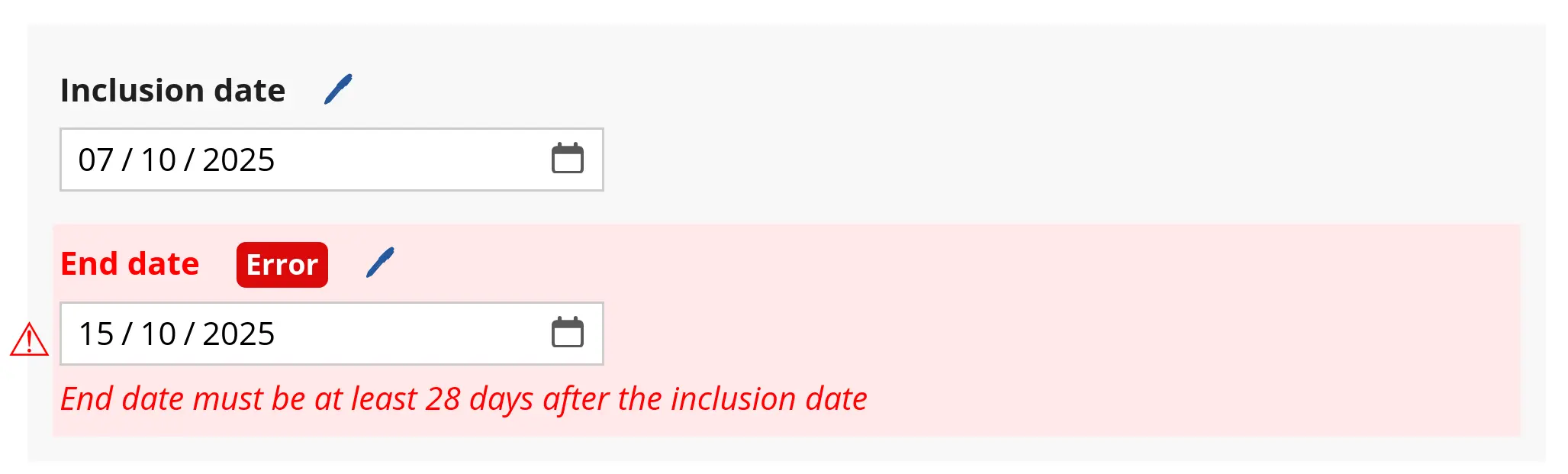
In the example below, we check that the end date is at least 28 days after the inclusion date. If not, the error shows up on the end date field.
form.date("date_inclusion", "Inclusion date")
form.date("date_end", "End date")

// First, let's check that the dates aren't empty!

if (values.date_inclusion && values.date_end) {
    let inclusion_plus_28d = values.date_inclusion.plus(28)

    if (values.date_end < inclusion_plus_28d)
        form.error("date_end", "End date must be at least 28 days after the inclusion date")
}
Immediate and delayed errors
By default, errors are displayed immediately during entry.
You can delay display until a save attempt by setting delay: true in the options:
form.text("inclusion_num", "Inclusion number")

// The { delay: true } option at the end of form.error() indicates that the error is only
// displayed at the time of validation (when the user tries to save the form).

if (values.inclusion_num && !values.inclusion_num.match(/^[0-9]{5}$/))
    form.error("inclusion_num", "Incorrect format (5 digits expected)", { delay: true })
Variable annotation
The annotation system is not enabled by default in projects created with older versions of Goupile.
Modify the project script to activate it:
app.annotate = true

app.form("project", "Title", () => {
    // ...
})
Each variable can be annotated with a status, a free comment, and locked if needed (only for users with audit rights). Click the pen 🖊 next to a variable to annotate it.
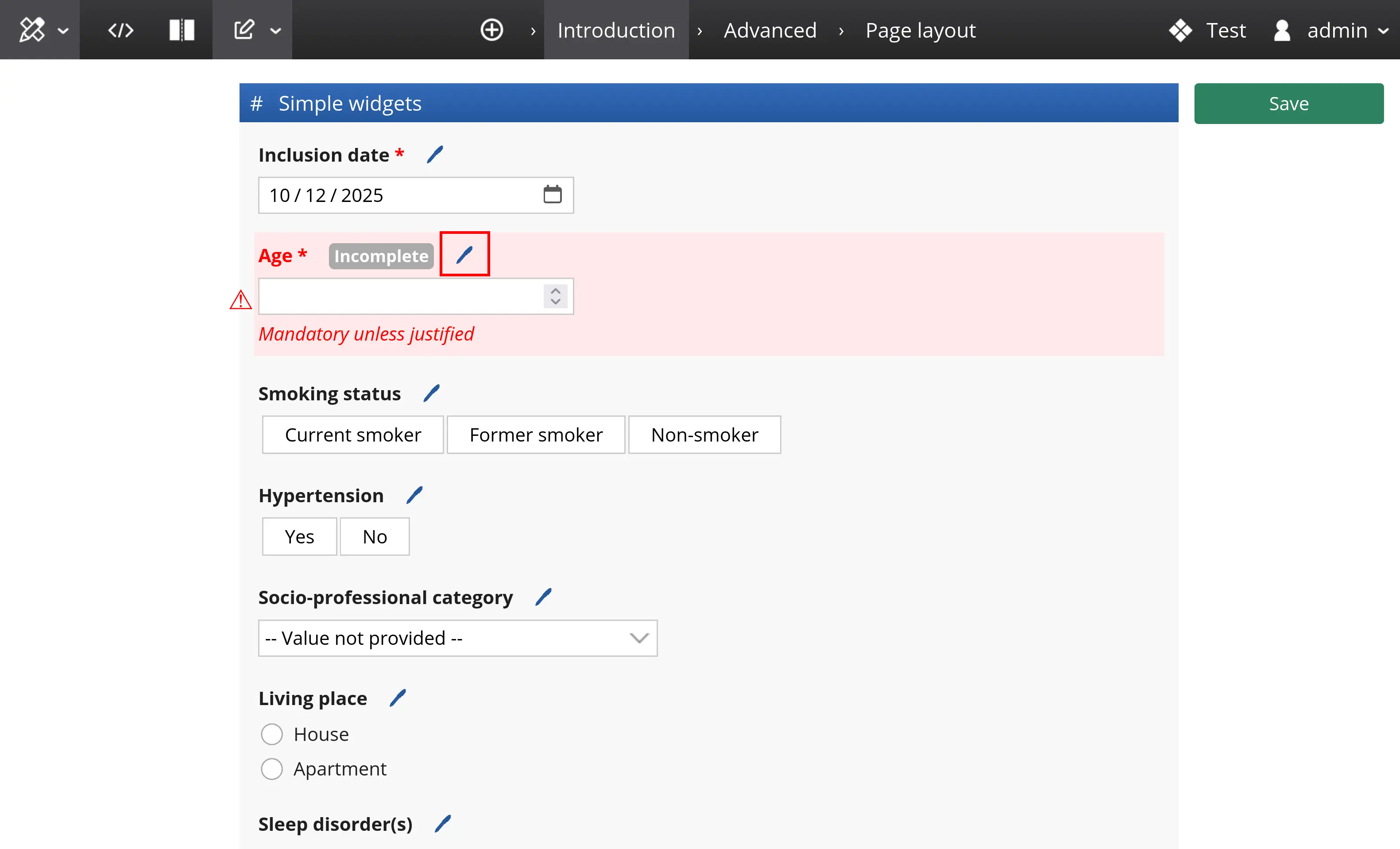
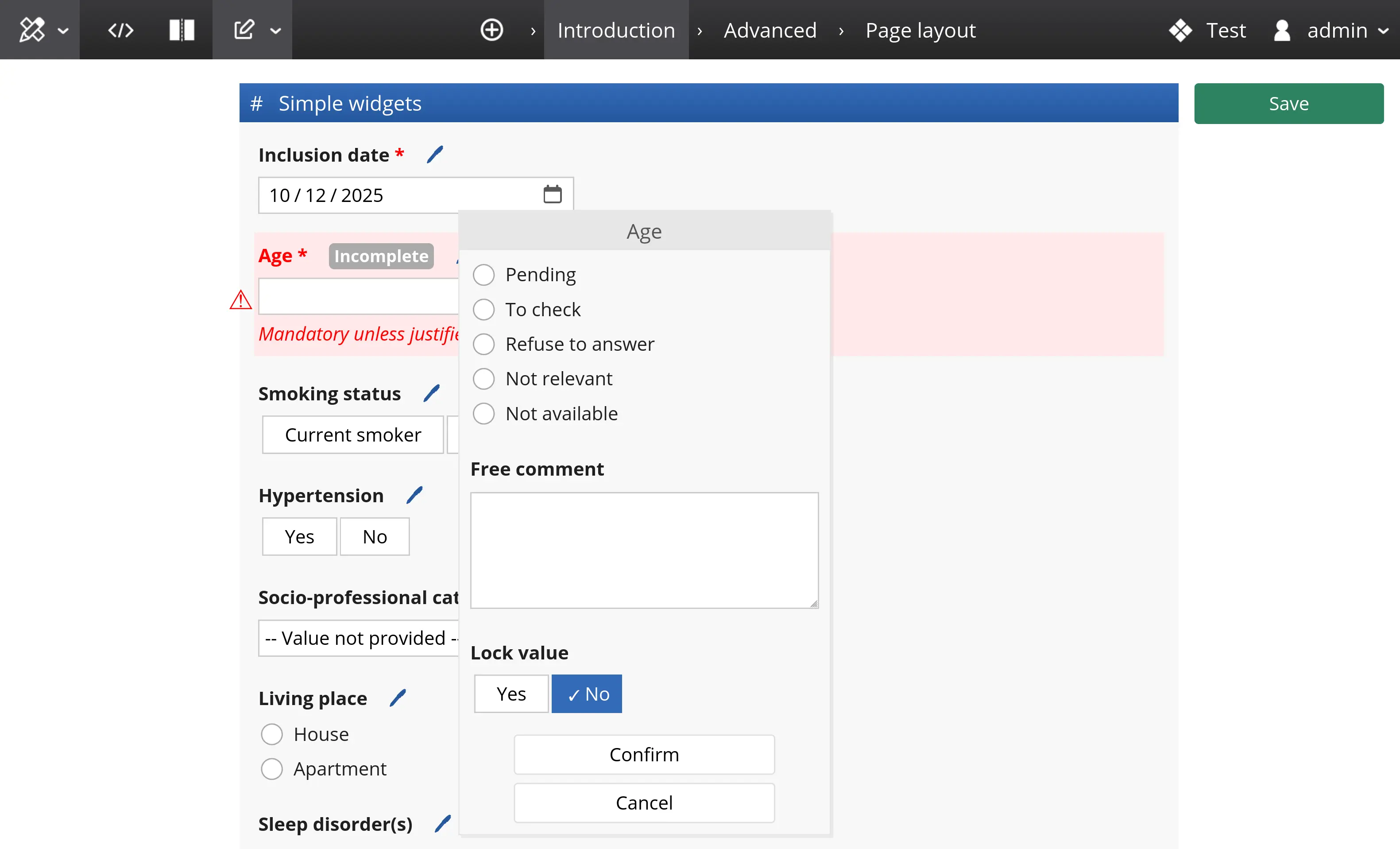
Setting the variable's status makes it possible to skip it even for mandatory fields. Available statuses:
- Pending: information not yet available (e.g., lab results)
- To check: entered value is uncertain and should be checked
- Refuse to answer: refusal to answer even if mandatory
- Not relevant: question does not apply or is irrelevant
- Not avaialble: required info unknown (e.g., missing measurement)
The last three statuses are not available (not visible) when a value has already been entered.
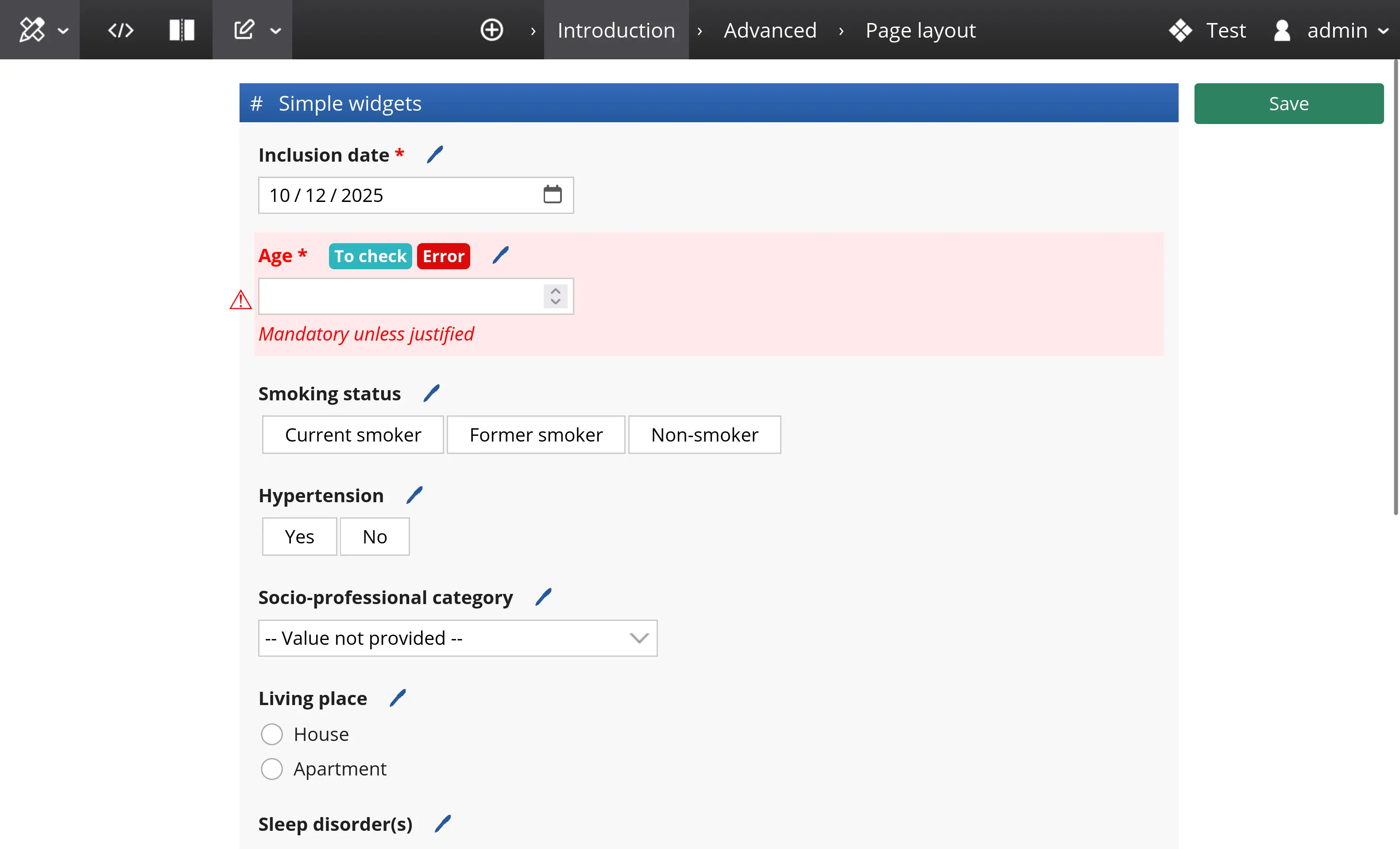
You can also add a free-text comment in the annotation for tracking purposes.
Users with audit rights (DataAudit) can lock a value so it cannot be modified unless unlocked.
See the data monitoring table documentation to find and filter annotated records.