General Principles
Widget syntax
Widgets are created by calling predefined functions using the following syntax:
function ( "variable_name", "Label shown to the user" )
Variable names must start with a letter or _, followed by zero or more alphanumeric characters or _. They must not contain spaces, accented characters, or any other special characters.
Many widgets also accept optional parameters in this format:
function ( "variable_name", "Label shown to the user", { mandatory : true, help : "Short help text displayed under the widget" } )
Some widgets take a list of choices (or propositions), which must be specified after the label. This is the case for single-choice widgets (form.enumButtons, form.enumRadio, form.enumDrop) and for multiple-choice enumeration widgets (form.multiCheck, form.multiButtons).
Each choice must specify the coded value (available in the exported data) and the label that is to the user:
function ( "variable_name", "Label displayed to the user", [ ["male", "Man"], ["female", "Woman"], ["other", "Other"] ] )
Be careful with the synatx of the code. When parentheses or quotation marks do not match (among other mistakes), an error occurs and the page cannot be updated until the error is fixed.
Input widgets
Free text
Use the form.text widget to create a simple text input field, with a single line (for example, to collect an email address or a name).
form.text("pseudo", "Username")

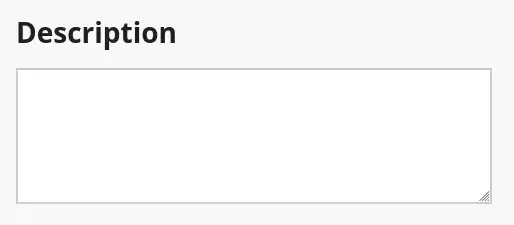
The form.textArea widget allows multi-line text input. You can modify the default size with the following options:
rows: number of linescols: number of columnswide: true to stretch the widget across the width of the page
form.textArea("desc", "Description", { wide: false })
Numeric value
The form.number widget allows users to enter a number, with no default minimum or maximum value. Without additional options, only integer values are accepted.
form.number("age", "Age", { suffix: value > 1 ? "years" : "year" })
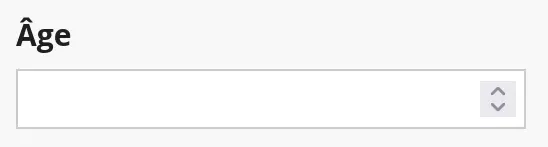
The code above also illustrates the use of a dynamic suffix that depends on the entered value.
Beyond the common options that are available to all widgets, the form.number widget accepts:
min: minimum allowed valuemax: maximum allowed valuedecimals: number of allowed decimal places
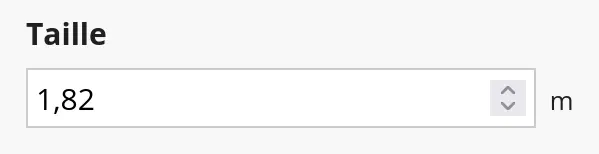
Here is an example that illustrates the use of multiple options to collect the height of individuals. Since the value should be in meters, the minimum is set to 0 and the maximum is set to 3 (to accomodate for blue extra-terrestrials), and two decimals are accepted.
form.number("height", "Height", {
    decimals: 2,
    min: 0,
    max: 3,
    suffix: "m"
})
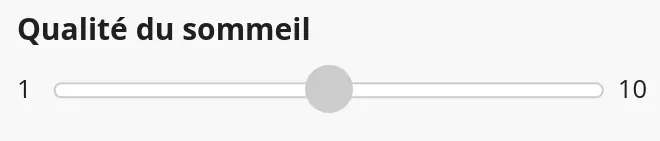
For bounded numeric input, you can also use form.slider to show an interactive visual slider. It defaults to a min value of 1 and a max value of 10.
form.slider("sleep", "Sleep quality", {
    min: 1,
    max: 10
})
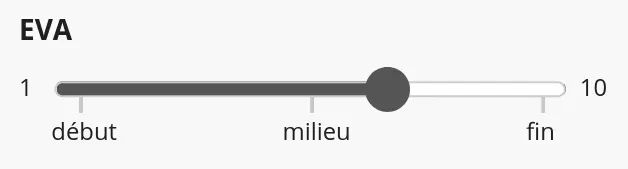
You can add ticks under the slider with the ticks option, the following values are possible:
true: add a tick for each integer value{ 1: "start", 5.5: "middle", 10: "end" }: show labeled ticks at specific values
form.slider("eva", "EVA", {
    min: 1,
    max: 10,
    ticks: { 1: "start", 5.5: "middle", 9: "end" }
})
Date and time
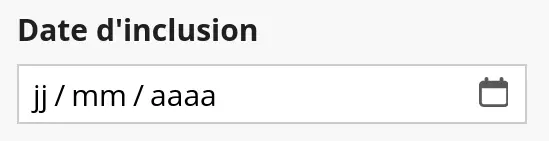
Use form.date to allow users to select a date (day/month/year). Just like other with widgets, you can use set a default value with the value option. A common example is to set the date to the current date, like in this example:
form.date("inclusion_date", "Inclusion date", { value: LocalDate.today() })
The value of this widget (when filled) is a LocalDate object, representing a date without timezone. It supports several methods such as:
date.diff(other): compute the number of days between two datesdate.plus(days): create a new date several days in the futuredate.minus(days): create a new date several days in the pastdate.plusMonths(months): create a new date several months in the futuredate.minusMonths(months): create a new date several months in the past
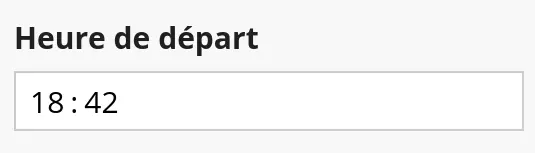
Use the form.time() widget to represent a local time (hour/minute), without timezone information. By default you can only the hour and the minute can be set (HH:MM format).
form.time("departure_time", "Departure time")
The value (when set) is a LocalTime object, with the seconds set to 0. You can enable the user to set the seconds with the seconds: true option.
Binary question (yes/no)
Use form.binary for yes/no (binary) questions. The coded value is 1 for Yes and 0 for No.
form.binary("hypertension", "High blood pressure")
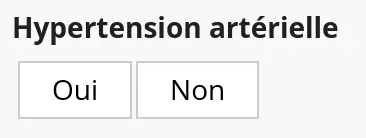
This widget is in fact a shortcut for a single-choice question with predefined Yes/No hoices, with automatic translations according to the proejct language.
The form.boolean widget is similar but returns true and false instead of 1 and 0.
Single-choice question
Goupile offers 3 widgets to create a question containing several choices (or propositions), and where only one choice can be selected. These widgets differ in their visual appearance, and the choice of which widget to use depends on your preferences, the type of question, and the number of choices.
Apart from how they look, these 3 widgets work in a similar way:
form.enumButtons(formerlyform.enum) displays the choices with horizontally arranged buttons.form.enumRadiodisplays the choices vertically and allows selecting the desired answer with a radio button 🔘.form.enumDropdisplays a drop-down menu containing the different options.
form.enum("smoking", "Smoking status",  [
    ["active", "Active smoker"],
    ["stopped", "Former smoker"],
    ["no", "Non-smoker"]
])

form.enumDrop("csp", "Socio-professional category", [
    [1, "Farm operator"],
    [2, "Artisan, shopkeeper, or business owner"],
    [3, "Executive or higher intellectual profession"],
    [4, "Intermediate profession"],
    [5, "Employee"],
    [6, "Worker"],
    [7, "Retired"],
    [8, "Other or no professional activity"]
])

form.enumDrop("origin", "Country of origin", [
    ["fr", "France"],
    // ...
])


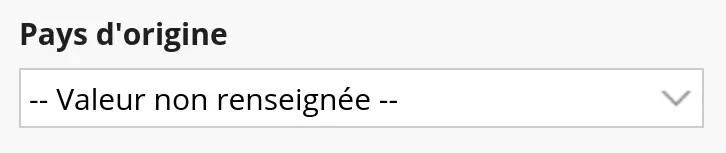
The list of possible choices is specified through the function's third parameter, in the form of a JavaScript array of arrays. For each option, you must specify the coded value (stored in the database and available in exports) and the label shown to the user.
[ ["male", "Man"], ["female", "Woman"], ["other", "Other"] ]
The coded value of each proposition can be a string or a numeric value.
Prefer enumButtons when there are few possible choices and short labels (e.g., gender). Use enumRadio when there are more options or longer labels (e.g., socio-professional category). Reserve enumDrop and dropdown menus for long lists (e.g., a list of countries).
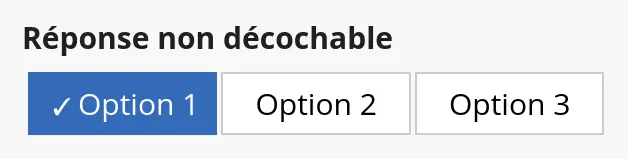
By default, these widgets can be deselected (or untoggled) by the user. Use the option untoggle: false to prevent the user from removing a selected choice. You can combine untoggle with a default value using value as shown below:
form.enumButtons("force", "Non-deselectable answer", [
    [1, "Choice 1"],
    [2, "Choice 2"],
    [3, "Choice 3"],
], {
    untoggle: false,
    value: 1
})
Multiple-choice question
Goupile offers 2 widgets to create a question containing several predetermined choices (or propositions), where one or multiple choices can be selected at once. These widgets differ visually, and the appropriate choice depends on your preferences, the question, and the number of choices:
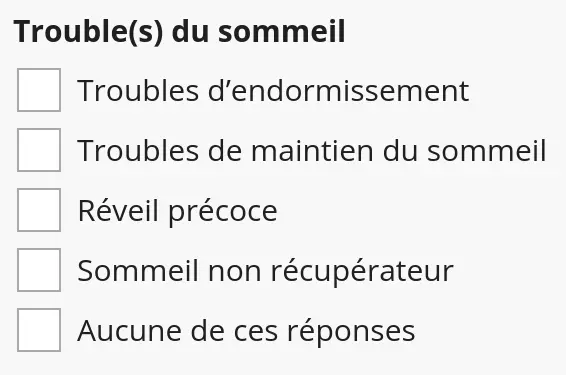
form.multiCheckdisplays the options vertically with checkboxes.form.multiButtonsdisplays the options horizontally as buttons, visually similar toform.enumButtons(but allows multiple selections).
form.multiCheck("sleep", "Sleep disorder(s)", [
    [1, "Difficulty falling asleep"],
    [2, "Difficulty maintaining sleep"],
    [3, "Early awakening"],
    [4, "Non-restorative sleep"]
])
form.multiButtons("sleep", "Sleep disorder(s)", [
    [1, "Difficulty falling asleep"],
    [2, "Difficulty maintaining sleep"],
    [3, "Early awakening"],
    [4, "Non-restorative sleep"]
])

In data exports, multiple-choice values are exported using several columns, one per choice. The cell corresponding to the entry (row) and option (column) contains 1 if the user has selected it and 0 otherwise.
You can create a choice that excludes all others by assigning null as its code. Selecting this option will uncheck all others, and vice versa. This is useful for creating a "None of the above" choice, as shown below:
form.multiCheck("sleep", "Sleep disorder(s)", [
    [1, "Difficulty falling asleep"],
    [2, "Difficulty maintaining sleep"],
    [3, "Early awakening"],
    [4, "Non-restorative sleep"],
    [null, "None of the above"] // Exclusive choice that unchecks all others
])
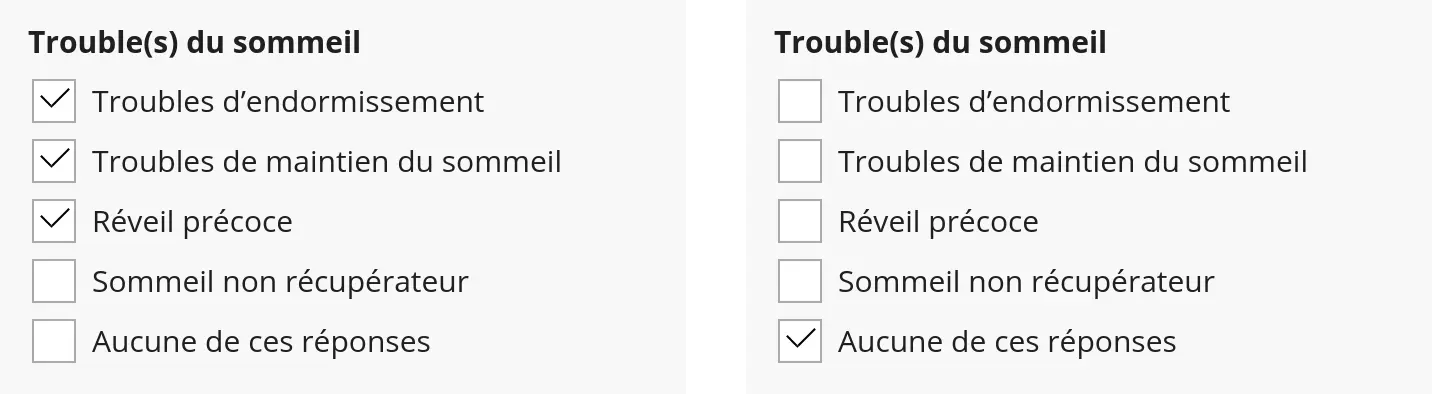
A multiple-choice variable including a null option is considered missing (NA) if no option is selected. Without a null option, the variable is never considered missing.
Computed variable
You can perform any calculations you want in JavaScript!
However, you can use the widget form.calc() to store a computed value in the database, display it to the user, and include it in data exports, all at the same time.
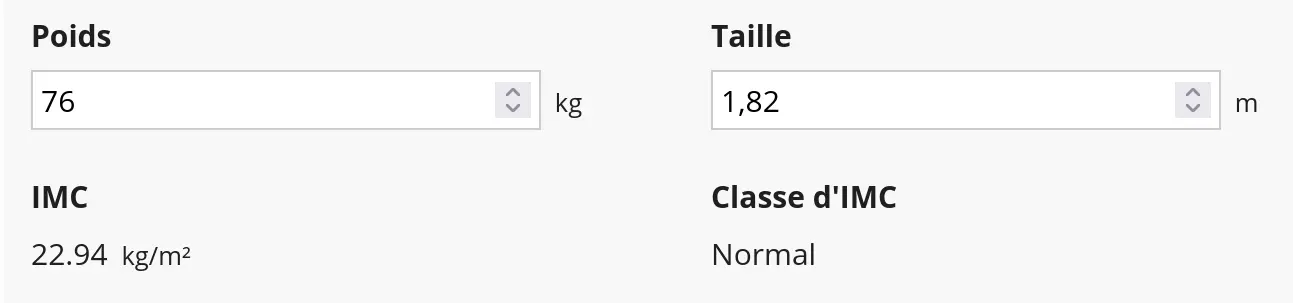
To do this, specify the computed value in the third parameter of form.calc() (after the label). The example below computes two variables from weight and height: the BMI, and the BMI class.
form.number("weight", "Weight", {
    min: 20,
    max: 400,
    suffix: "kg"
})

form.number("height", "Height", {
    min: 1,
    max: 3,
    decimals: 2,
    suffix: "m",
    help: "Enter a weight and height and the BMI and BMI class will be calculated automatically."
})

let imc = values.weight / (values.height ** 2)

form.calc("bmi", "BMI", bmi, { suffix: "kg/m²" })
form.sameLine(); form.calc("bmi_class", "BMI class", bmiClass(bmi))

function bmiClass(bmi) {
    if (bmi >= 30) {
        return "Obesity"
    } else if (bmi >= 25) {
        return "Overweight"
    } else if (bmi >= 18.5) {
        return "Normal"
    } else if (bmi > 0) {
        return "Underweight"
    }
}
File attachment
Use the form.file() widget to allow the user to attach a file to the form.
form.file("attach", "Attachment")
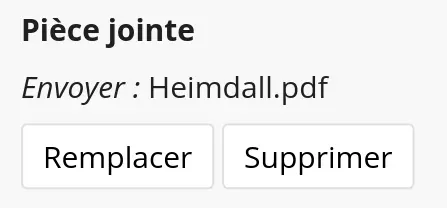
In data exports (XLSX or CSV), only the SHA-256 hash of the file is included, not the file itself.
Visual layout
Sections
Use the form.section widget to clearly identify different parts of your questionnaire by placing widgets inside sections.
This widget takes two parameters: the section title and a function inside of which the content of the section is created.
form.section ( "Title", () => { // Section content } )
The following example groups several widgets used to compute the BMI, including the BMI calculated via a form.calc widget.
form.section("Weight and height", () => {
    form.number("weight", "Weight", {
        min: 20,
        max: 400,
        suffix: "kg"
    })

    form.number("height", "Height", {
        min: 1,
        max: 3,
        decimals: 2,
        suffix: "m",
    })

    let bmi = values.weight / (values.height ** 2)
    form.calc("bmi", "BMI", bmi, { suffix: "kg/m²" })
})
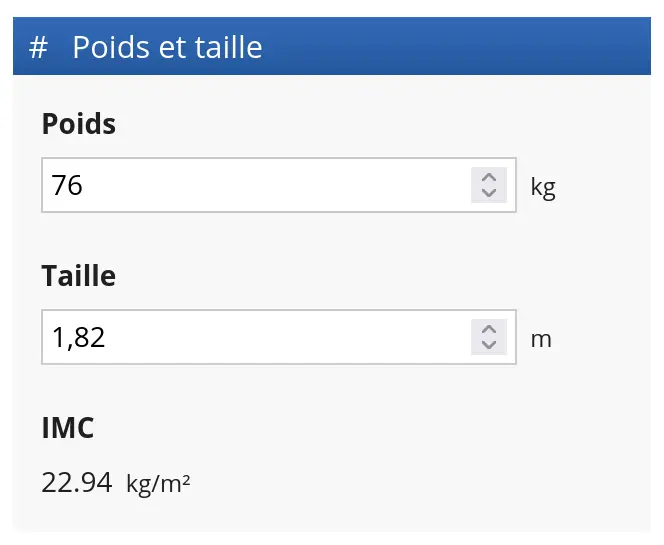
Sections affect only the visual layout of the page. They do not affect the data schema and do not exist in the data export.
You can nest sections inside other sections when needed.
Columns and blocks
By default, widgets are arranged vertically. You can align widgets horizontally in multiple columns using form.columns, which works similarly to form.section but without a title.
form.columns ( () => { widget1("var1", "Label 1") widget2("var2", "Label 2") } )
Additionally, Goupile provides form.block() to group several widgets into a single block aligned consistently vertically.
The following example shows how to combine a column layout and a block to align weight and height horizontally, and display the computed BMI below the height.
form.columns(() => {
    form.number("weight", "Weight", {
        min: 20,
        max: 400,
        suffix: "kg"
    })

    form.block(() => {
        form.number("height", "Height", {
            min: 1,
            max: 3,
            decimals: 2,
            suffix: "m",
        })

        let bmi = values.weight / (values.height ** 2)
        form.calc("bmi", "BMI", bmi, { suffix: "kg/m²" })
    })
})
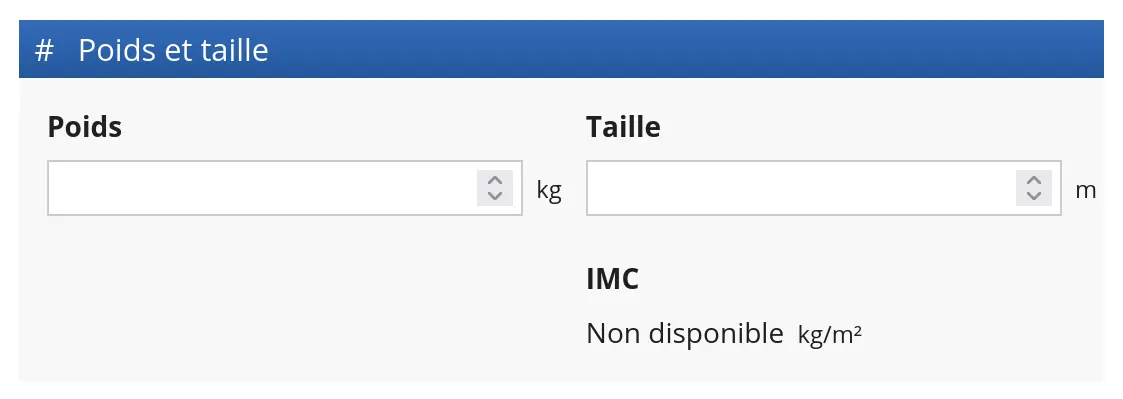
On small screens (tablets, phones), columns are ignored and widgets are arranged vertically.
For simple cases, Goupile offers a shortcut with the function form.sameLine(). This displays a widget to the right of the previous one without having to wrap both in a form.columns() call.
widget1("var1", "Label 1") form.sameLine(); widget2("var2", "Label 2")
The option wide: true creates horizontally stretched columns that fill the page. This option can be used with form.columns or with the shorter form.sameLine, as illustrated below:
form.columns(() => {
    form.number("weight", "Weight")
    form.number("height", "Height")
}, { wide: true })

// Equivalent code with form.sameLine()
form.number("weight", "Weight")
form.sameLine(true); form.number("height", "Height")
Common options
Mandatory values
Use the option mandatory: true to make a field required. For convenience, you can also enable this option by prefixing the variable name with an asterisk:
form.number("*age", "Age")

// Equivalent code:
// form.number("age", "Age", { mandatory: true })

The Missing required answer error only appears after attempting to save the form.
Help message
Use the help option to add a help text displayed in small grey characters below the widget. Use it to provide guidance, clarifications, or examples related to the question above.
form.number("pseudo", "Username", {
    help: "We prefer usernames in the format name.surname, but we don't enforce it.
})

Prefix and suffix
Use the prefix and suffix options to display text on the left or right of the widget. This text may be static or dynamic, and computed from the field value itself. The following example illustrates this, the suffix changes depending on the current widget value.
form.number("age", "Age", { suffix: value > 1 ? "years" : "year" })

Pre-filled value
Use the option value to specify a pre-filled value. The widget will follow this value even if it changes (e.g., if computed from another field) until the user enters a value manually. After that, the widget keeps the user's value.
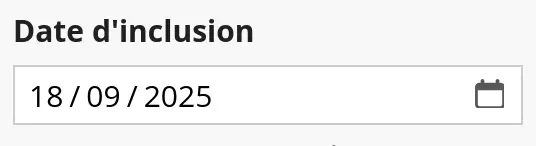
For example, you can preselect an inclusion date one week from today with the code below:
form.date("date_inclusion", "Inclusion date", { value: LocalDate.today().plus(7) })
Disable a widget
Disable a widget with disabled: true. Justl ike other options, this value can be computed dynamically.
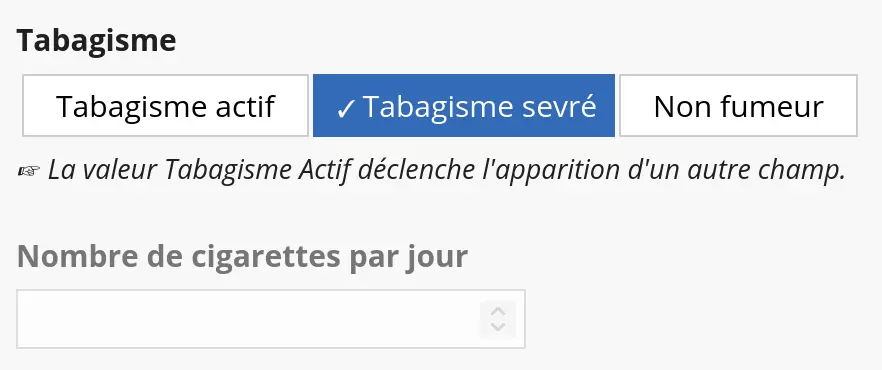
Use it to disable a field based on a previous answer. In the example below, the numeric field is only enabled if the user selects Active smoker.
form.enumButtons("smoking", "Smoking status",  [
    ["active", "Active smoker"],
    ["stopped", "Former smoker"],
    ["no", "Non-smoker"]
])

form.number("cigarettes", "Number of cigarettes per day", { disabled: values.smoking != "active" })
Hide a widget
Use the option hidden: true to hide a widget.
This can be useful when you want a variable to exist in the data export (with its metadata) but not displayed in the form. You can combine a computed widget like form.calc() with hidden: true for that:
let score = 42
form.calc("score", "Score computed from the form", score, { hidden: true })
Placeholder
Use the placeholder option to display a faded value inside an input field. It disappears when the user types.
// Note: using null as the label hides the label entirely
form.text("email", null, { placeholder: "email address" })

Widget appearance
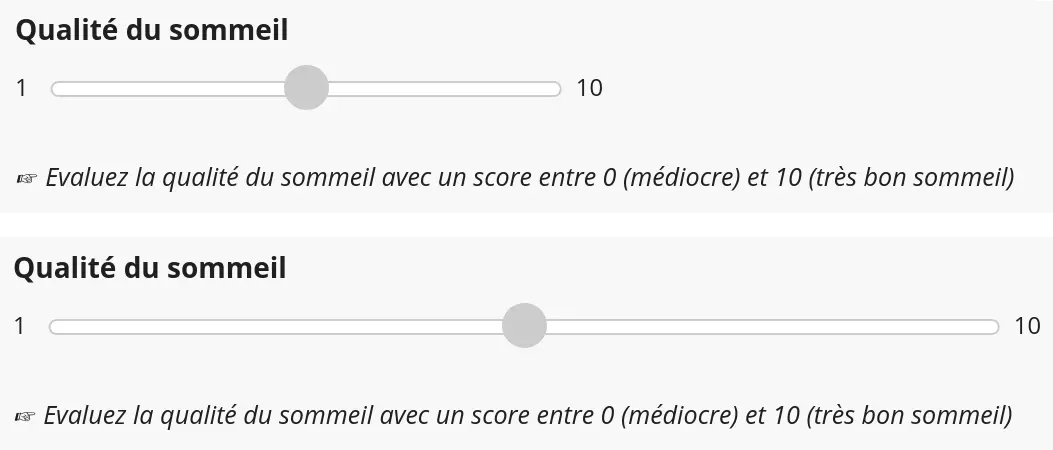
Use wide: true to stretch the width of a widget so it occupies all available horizontal space.
form.slider("sleep1", "Sleep quality", {
    help: "Rate sleep quality from 0 (poor) to 10 (very good)"
})

form.slider("sleep2", "Sleep quality", {
    help: "Rate sleep quality from 0 (poor) to 10 (very good)",
    wide: true
})
Use compact: true for a more compact layout where the label and the field appear on the same line.
form.text("nom", "Last name", { compact: true })
form.text("prenom", "First name", { compact: true })
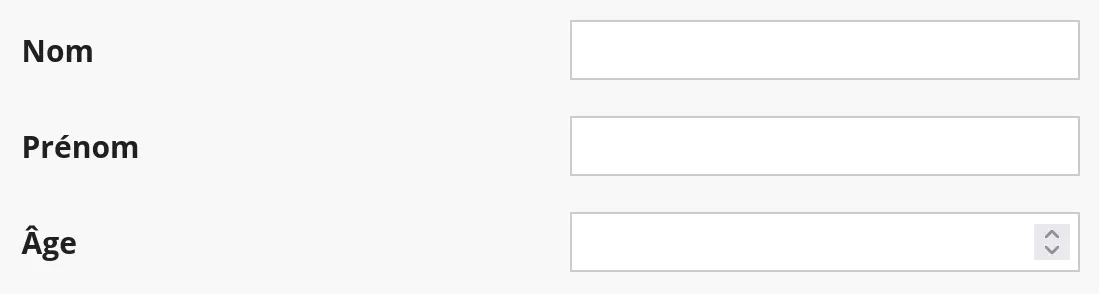
form.number("age", "Age", { compact: true })