Conception environment
In Conception mode, changes made to different pages are only visible in this mode. Other users will only see the changes after the project is published.
You can use the form normally during development, and even save data.
Be careful not to mix test data with real data if you modify the form after it has gone live. Data saved in conception mode uses a sequence number, which will not be reused even if the record is deleted!
There is one exception: if you delete all records (for example, after finishing your project tests, before going live), the sequence number is reset to its initial value, and the next record will have sequence number 1.
Project publication
Once your project is ready, you must publish it to make it accessible to all users. Unpublished code is only visible to users working in Conception mode.
After publication, users will be able to enter data into these forms.
To do so, click on the Publish button at the top right of the code editor panel. This will display the publication panel (shown in the screenshot on the left).
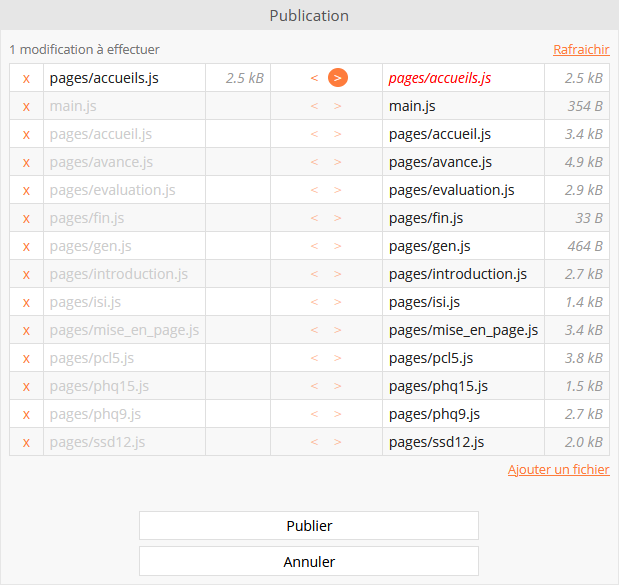
This panel summarizes the changes made and the actions that will result from publishing. In the screenshot on the right, you can see that a page has been modified locally (named "home") and will be made public once the changes are accepted.
Confirm the changes, and all users will have access to the new version of the form.
Adding files and images
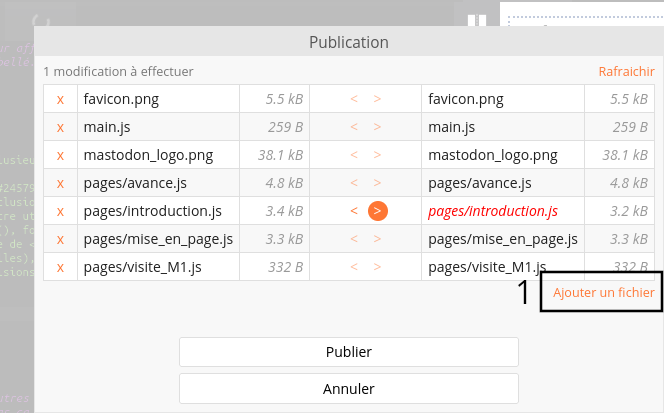
You can integrate images, videos, PDFs, and all types of files, which will be directly hosted by Goupile. To do this, open the publication panel (accessible above the editor), then click on the "Add a file" link [1].
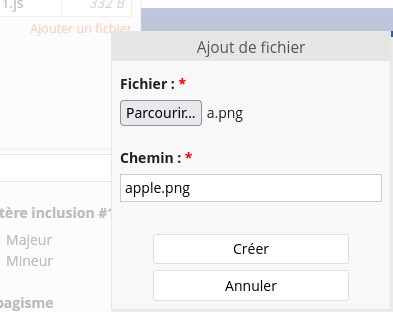
You can then select a file from your computer and rename it if you wish. You can also organize it into folders by giving it a name such as "images/alps/montblanc.png".
Once the file has been added, you can reference it directly in your pages using the form.output widget. The following HTML code shows how to display the Apple logo from a file images/apple.png added to the project:
form.output(html`
    <img src=${ENV.urls.files + 'images/apple.png'} alt="Apple Logo" />
`)
Using ENV.urls.files to build the URL ensures that the URL changes with each project publication, preventing browser cache issues. However, each file is also accessible via /project/files/images/alps/mountain.png, and this URL is stable.
The filename favicon.png is special. If you upload an image named favicon.png, it will replace the favicon displayed in the browser and the icon shown on the login screen.