User management
User list
Goupile users are shared among the various projects, to which they can be individually assigne with various permissions.
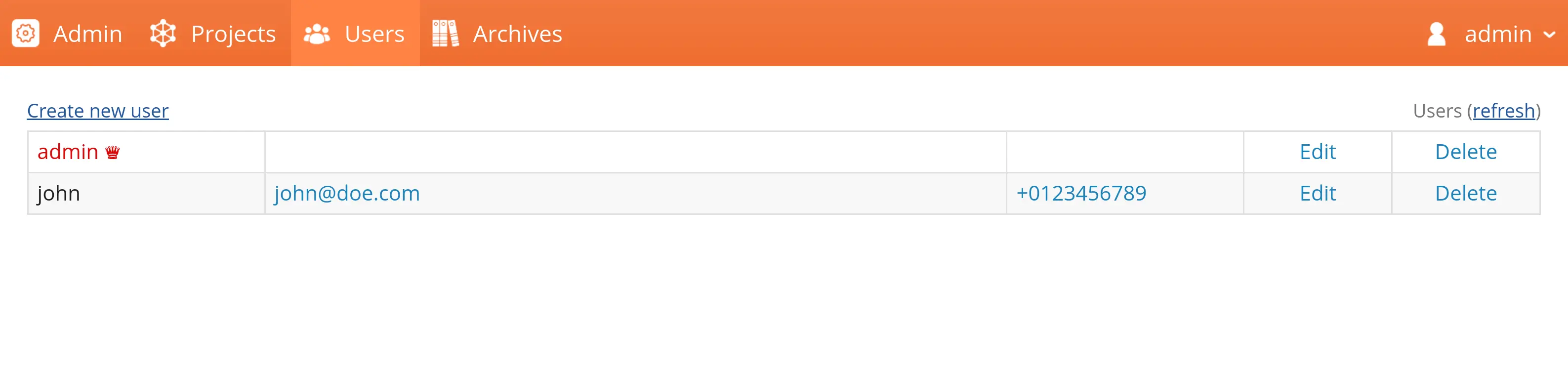
There is therefore a single list of users, regardless of the number of projects. However, by clicking the "Permissions" action for a project (in the project list), you can configure the permissions of each user on that project.
When a project is created, the user who created is given all permissions on it, and other users have none.
User classes
There are three classes of users in Goupile.
The first two classes depend on the "Root" (or super-admin) option enabled during the creation or modification of a user:
- Normal users only have access to the projects to which they are assigned, and not to the administration module.
- Root users (or super-administrators) have access to the administration module and can modify projects, users, and all permissions.
When a normal user has administration rights (BuildAdmin) on at least one project, they are promoted to administrator user, giving them limited access to the administration module.
Administrator users can therefore open the administration module and perform certain actions:
- An administrator user can view, configure, and split their projects (for multi-center studies).
- An administrator user can create users and assign them to their projects.
- An administrator user cannot manage archives or modify the accounts of a root user.
Creating a user
Click the "Create a user" button to create a new user:
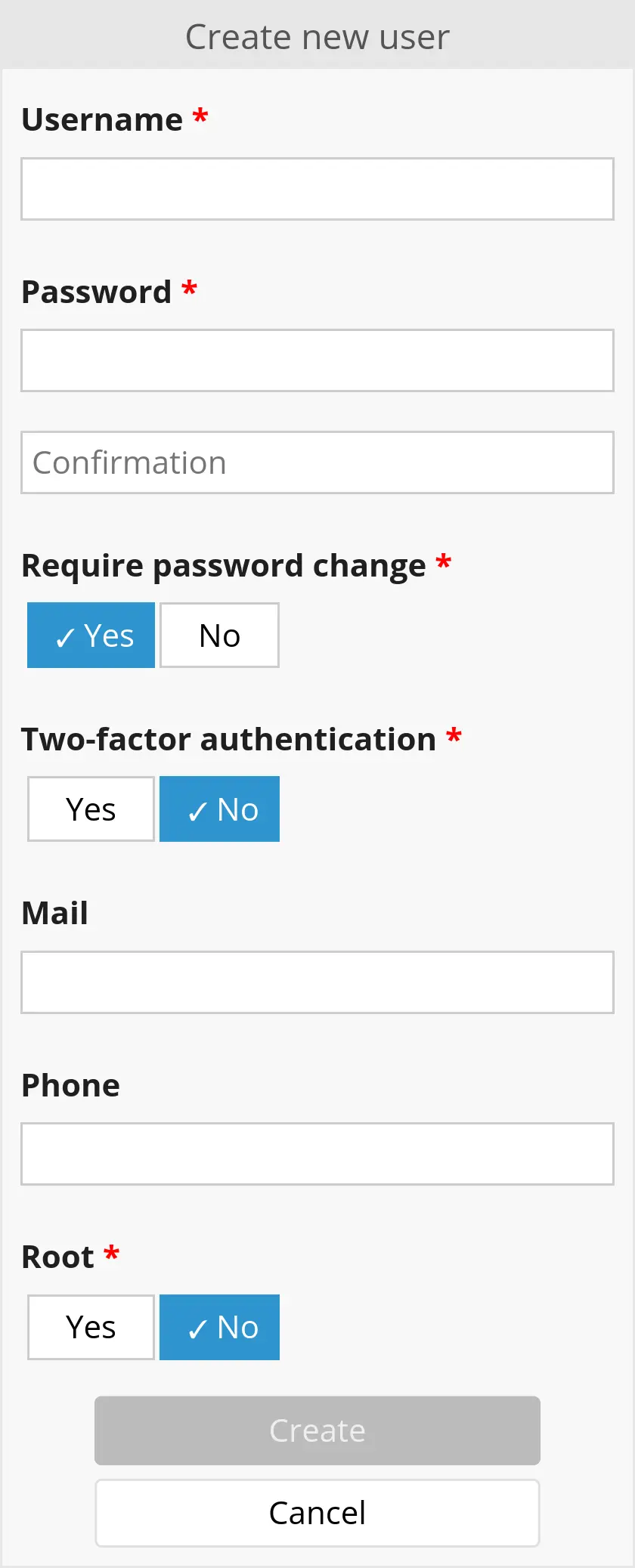
The username must contain only lowercase unaccented letters, numbers, or the characters _, ., and -. It must have fewer than 64 characters. Some usernames are prohibited, such as goupile.
You must set the initial password, which does not need to follow the constraints described in the section on user classes. It simply needs at least 10 characters. However, if you enable the "Require password change" option (checked by default), the user will need to change it upon first login, and the new password must meet the required constraints.
You can require two-factor authentication using a TOTP code. If the option is enabled, the new user must retrieve the key (text or via QR code) after setting their password. Users may enable or reconfigure two-factor authentication at any time; however, only administrators can disable TOTP for an existing account.
Goupile is primarily intended for clinical studies, so there is no mail-based password recovery system.
In case of a forgotten password, a new one must be set by a root user or an administrator user who has rights on a project to which the user is assigned.
The mail and phone fields are optional and are provided purely for informational purposes.
Finally, if you have root status, you can create another root user by enabling the corresponding option. Root users have the same status as the user created during the initial installation. They appear in red with a small crown ♛ next to the username.
Permission system

Development permissions
These permissions relate to the design of the study and management of users assigned to the project.
| Development | |
|---|---|
| Code | Access to conception mode to modify project and form scripts. |
| Publish | Publish (or deploy) modified scripts, making them available outside conception mode. |
| Admin | Partial access to the administration module for the relevant project and the users assigned to it. |
When a user has Admin permission on at least one project, they are promoted to an administrator user.
Data permissions
These permissions relate to data access. They apply to the project in single-center studies or to each center in multi-center studies.
| Data collection | |
|---|---|
| Read | Read access to all records of the project or center. |
| Save | Creation of new records and modification of records: either all records of the project/center (if *Read* is enabled) or only records created by the user. |
| Delete | Deletion of records the user has access to: either all records of the project/center (if *Read* is enabled) or only the user's own records. |
| Audit | Consultation of the audit trail and unlocking of records. |
| Offline | Access to offline functionality for allowed projects. |
Users without the Read permissions but with the Save permission can create records, and they can also read and modify the records they created.
Use the lock and forget functions to create records that become locked or inaccessible once properly completed.
Export permissions
Export-related permissions are placed in a separate category. This also helps visually identify users with export permissions in the user list (permissions shown in blue).
| Exports | |
|---|---|
| Create | Creation and download of new exports, containing either all data or only data created since a previous export. |
| Download | Download a pre-existing export, created manually (by a user withCreate permission) or automatically with a scheduled export. |
Users with the ExportCreate permission can download the export they created and view the list of previous exports. However, they cannot download an export that already existed beforehand.
Message permissions
These permissions relate to advanced Goupile features, used only in certain projects.
They require the server to be configured to send emails (SMTP configuration) and/or SMS (for example via Twilio).
| Messages | |
|---|---|
| Automated sending of emails via the form script. | |
| Text | Automated sending of SMS via the form script. |